Fox Live Mode Setup
|
This setup allows all to view a map during a hunt & see QSOs being made by the fox as the hunt progresses. The fox will never know that it is running. NOTE that a fox may not be setup for live mapping, and hence, you will not see QSOs for that fox. If you've fiddled with the IP Port setting, e.g. for FD, since your last hunt, don't forget to check it per instructions below. Note that the N1MM+ IP Port setting is not connected to a particular contest, so changing it for one contest changes it for all contests. Any other time, logged QSOs go to the test map (link below), no matter what date, time or frequency is in your N1MM log. View Test Map for If you don't see the map, make sure you are connected to the Internet. Don't forget to refresh the map in your browser after logging each QSO. Note that calls logged in incorrect states will not show up, so pick a familiar hound to log. If you don't use N1MM+ to log your hunts, let me know what software you do use and I'll see if we can set it up to post QSOs to the map. Setup: Run N1MM & click "Config", then click "Configure Ports, Mode Control, Winkey, etc.", then click "Broadcast Data". You'll see several check boxes under "Type of Data" on the left (See picture below). Just check the one beside Contacts. To the right you should see the IP Port already set to 127.0.0.1:12060 If it is not set to that value, contact me so we can discuss whether you are already using this feature. Once this change to the N1MM+ config is done, it can remain set that way. The second thing to do is download the Python program I wrote to your machine. It doesn't matter what folder you load it into to, it just needs to be running to get the QSO info from N1MM to my website. (See below the picture for a technical discussion of how my program works with N1MM+.) You do need to be connected to the internet for that's the way the program gets the QSO to my web site. I've had trouble getting an email with an "exe" suffix to go thru emails. So, click link below & a file named "FoxK4oaqPostN1mmQso.exe" should go into your download folder on your computer. Click here to download FoxK4oaqPostN1mmQso.exe You can double click the file in the download folder to run it from there or you can put in another folder. Leave it running only when you want QSOs logged in N1MM to be sent to my website program. Actually the only time it will log QSOs to my website is if you are a fox AND the hunt is in progress. Contact me once you have things set up so we can test & make sure all is working before the hunt starts. Fritz 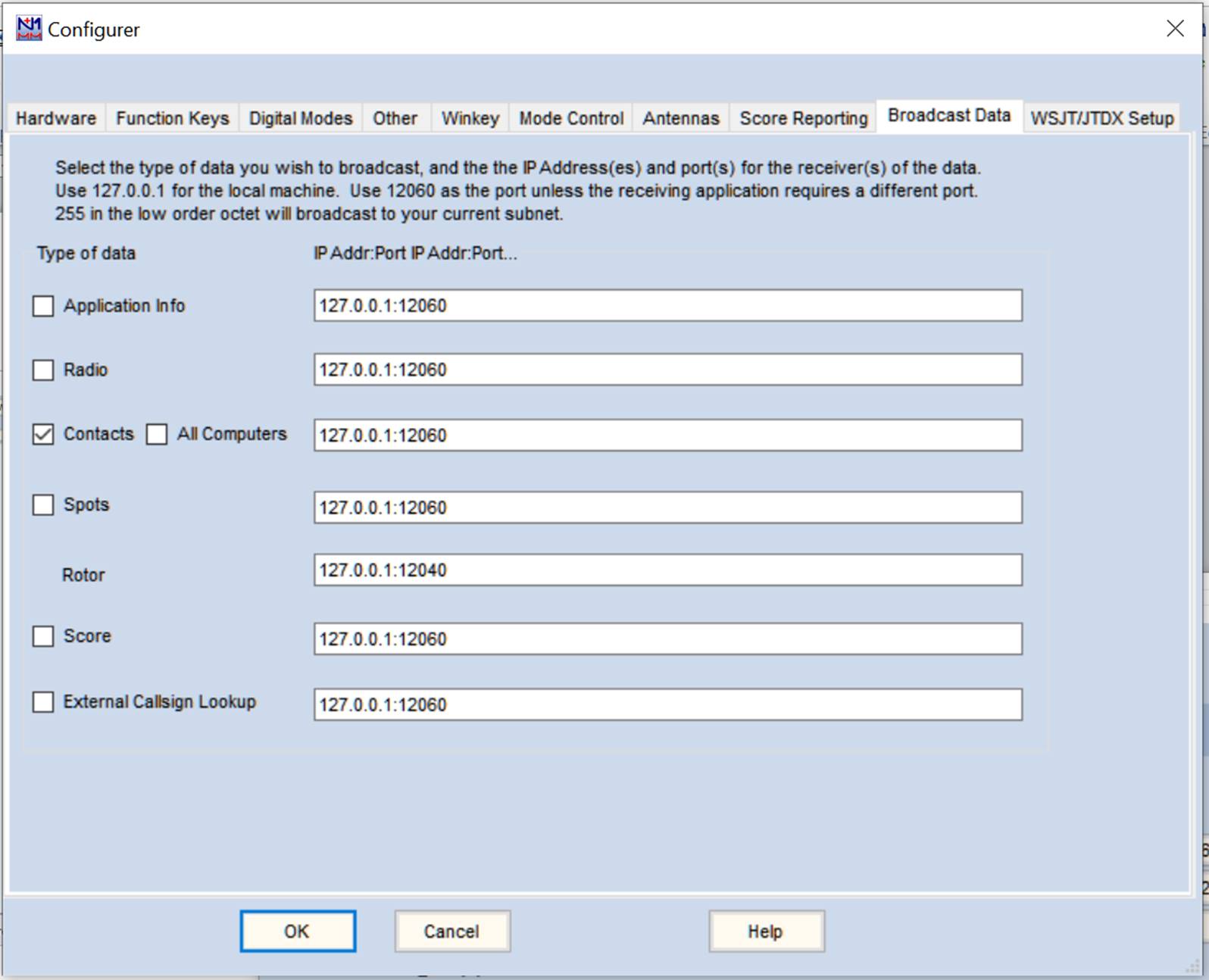 Technical discussion of what's going on under the hood: The changes in the N1MM+ config simply results in N1MM+ sending UDP messages on port 12060. Those messages are non-blocking and asynchronous, so N1MM+ just sends them out every time you log a QSO. N1MM+ won't get blocked if the .exe isn't running. There is no handshake between the .exe and N1MM+. Refer to the relevant document page in the N1MM+ manual. n1mmwp.hamdocs.com/appendices/external-udp-broadcasts/ My .exe program receives the data from N1MM+ and POSTs it to a page on my web site. That program receives the data and puts it into the log table. When a user refreshes the map during a contest, that program takes all data posted for the hunt & shows it on the map. You don't have to refresh anything after every QSO. In fact, once you start the .exe, you never even have to look at it during the hunt. It's completely unobtrusive. If it were to become a problem, then you can just kill the command window where it runs and it doesn't affect N1MM+. I strongly suggest you test before the hunt starts to verify all is working OK. Click Settings, then click Application Program Interface (API) (at bottom of drop down) Check the box TCP API Enabled (Server Port 1100 Then click Done at the bottom. This only needs to be done once. It can be left with this setting. Click link below & a file named "FoxK4oaqPostN3jfpQso.exe" should go into your download folder on your computer. Click here to download listenForN3JFP.exe You can double click the file in the download folder to run it from there or you can put in another folder. With this program running, QSOs logged with your ACLog program will be mapped on K4OAQs map, provided you are a fox & the hunt is going on. Otherwise, the logged QSOs are ignored. A test scenario can be setup before the hunt starts to verify all is setup properly. |