
Fox Live Mode Setup
|
01Feb2022 8:45ET WARNING I didn't test below throughly. It works fine until you have to repeat your message. With setup below, you'd best repeat by hand. I have several ideas to fix the problem and am proceeding to test those ideas. Hopefully, I'll have a solution soon. 9:30ET Update N1MM+ is set up such that hitting "=" sends the last thing you sent. Thus, htting = repeats the msg as desired. Bad memory me, never satisfied, pursued fixing a function key to repeat. I chose F10 and put {SENTRSTCUT} {EXCH} ! in it. AND I hit one of those funny N1MM things I mentioned below. "!" sends only the last letter of the call. I tried putting braces around !, same thing. I tried putting {F5}, same. It eventually dawned on me that I wasn't really repeating my msg, the hound call was not sent before my exchange. So, just for grins, knowing it wouldn't work, I put ! {SENTRSTCUT} {EXCH} ! into F10. IT WORKED! Go figure. The full hound call is sent at the beginning AND at the end!!! :) I guess N1MM is smarter than me ... it works if you put the right stuff there. :) Fritz K4OAQ I'm one for minimizing the number of keystrokes, especially when running hounds. The fewer the keystrokes, the fewer oppurtunities to make a mistake. I spent quite a bit of time searching for a solution to send an RST other than 599 where you didn't have to remember to hit the tab key & enter "S" of the RST. In the process I discovered things N1MM couldn't do. And hit some really odd things, like it sending only the last letter of the call you're QSOing when the function key message is set to send the entire call. The solution that follows assumes you use N1MM+ in ESM mode. I will describe a non-ESM mode approach later. Consequently, the ESM solution turned into something rather involved. It requires installing AutoHotKey, AHK, which is free and can be downloaded at AutoHotKey.com If you're already using AHK, then you'll need two versions of your AHK file, one for fox hunts & one for everything else. First create a text file on your computer which contains the following lines. #NoEnv ; Recommended for performance and compatibility with future AutoHotkey releases. ; #Warn ; Enable warnings to assist with detecting common errors. SendMode Input ; Recommended for new scripts due to its superior speed and reliability. SetWorkingDir %A_ScriptDir% ; Ensures a consistent starting directory. F6:: Send {Tab}3{Tab}5{Tab 4}{Enter} Sleep 4000 Send +{Tab} return F7:: Send {Tab}5{Tab}5{Tab 4}{Enter} Sleep 4000 Send +{Tab} return F8:: Send {Tab}7{Tab}5{Tab 4}{Enter} Sleep 4000 Send +{Tab} return F9:: Send {Tab}9{Tab}5{Tab 4}{Enter} Sleep 4000 Send +{Tab} return Let the filename be AutoHotKey.txt containing the lines above. Move the file to the "SupportFiles" folder in N1MM+. On my computer it's C:\Users\Fritz\Documents\N1MM Logger+\SupportFiles It's probably the same on your computer except your user name would replace "Fritz". Once the file is there, rename it such that the suffix is "ahk". With that name, a double click of the file runs it & the function keys would function as programmed in the file rather than what they normally do. If you need to edit the file, then right click the filename & select Edit Script. Now run N1MM+ and setup a new QRPFOXHUNT contest with the exchange set up with your info, e.g., VA FRITZ 5W. Next click "Config", then click "Configure Ports, Mode Control, Winkey, etc.", then click "Function Keys" tab at the top. You'll see 5 check boxes on the left & under them a place to enter the AutoHotKey file name. Enter "AutoHotKey.ahk" & click OK to save & exit. 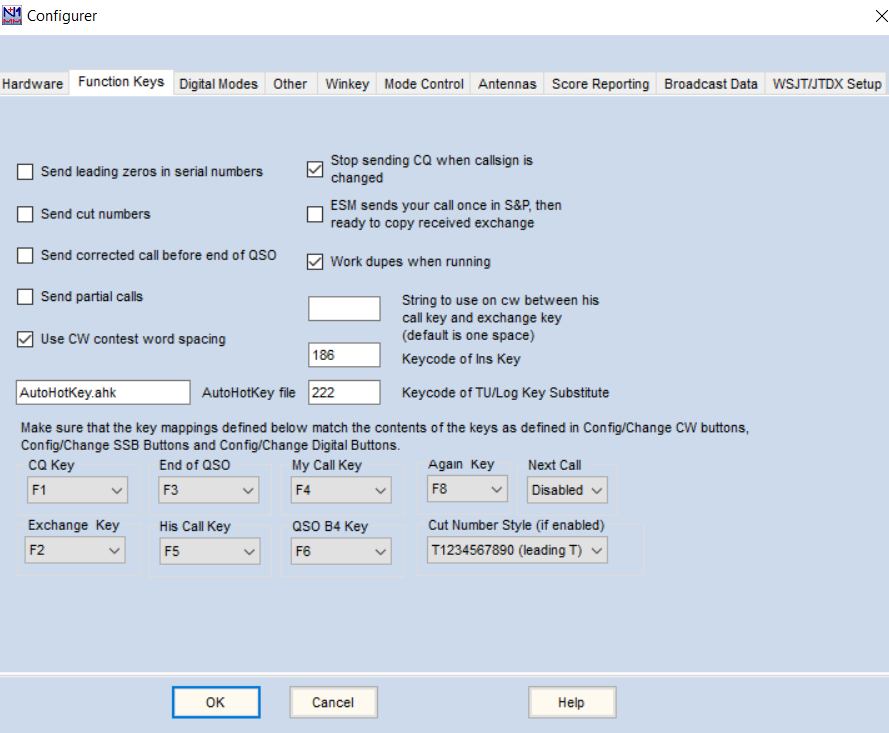 Next, we need to set up the N1MM+ function key file. I would create a new file named something like QRPFOXHUNT_foxii.mc in the folder C:\Users\[your user name]\Documents\N1MM Logger+\FunctionKeyMessages The file should contain the following lines: # # CW Function Key File for being Fox in QRPFOXHUNT contest. Special AHK needed. # ################### # RUN Messages ################### F1 Cq,CQ FOX {MYCALL} UP F2 EXCH,{SENTRSTCUT} {EXCH} ! F3 Tu,TU FOX {MYCALL} UP F4 MYCALL,{MYCALL} F5 HISCALL,! F6 539, F7 559, F8 579, F9 599, F10 REPEAT,! {SENTRSTCUT} {EXCH} ! F11 HOME,{CTRLHOME} F12 WIPE,{WIPE} ################### # S&P Messages ################### F1 ?,? F2 EXCH,{SENTRSTCUT} {EXCH} ! F3 Tu,TU FOX {MYCALL} UP F4 MYCALL,{MYCALL} F5 HISCALL,! F6 539, F7 559, F8 579, F9 599, F10 REPEAT,! {SENTRSTCUT} {EXCH} ! F11 HOME,{CTRLHOME} F12 WIPE,{WIPE} # So, a few words how this works. Hit F1 to send CQ FOX {MYCALL} UP. Note that {MYCALL} is an N1MM+ macro that sends the call entered when you setup N1MM+. A hound answers your CQ and you begin entering his call. You can hit the appropriate RST function key (F6,F7,F8 or F9) before you finish entering his call. Of course, you have to get the rest of the call entered before N1MM+ sends what has been entered. Of course, you can wait until you've completely enter the call to enter the appropriate RST function key. When you hit the RST function key, AHK does one tab to the RST Sent field and enters the RST number depending on which function key was hit, it then tabs to the RST Rcvd field and enters a 5, the most probable RST you will receive. It then tabs 4 times to get back to the call field and then hits the enter key, which initiates N1MM+ to do it's thing. In ESM mode, the Enter key first sends the call you've entered and then sends what is setup in the F2 key which would be RST, Exchange and the hound's call. Then the cursor ends up on the State field. So AHK waits 4 seconds while all of this is happening, and then tabs back (+{tab} = shift tab) to the RST Rcvd field with the "S" number highlighted. Hence, if the hound sends an RST other than 559, e.g., 579, then all you need to do is hit the "7" key. The space bar, as well as tab, gets you to the remaining fields the hound will send. After you've entered all the hound's info, then hit Enter and ESM Mode sends the F3 message and gets you ready to work the next hound. Obviously, you can tweak what I have to suit your preferences. After the hunt you need to get things back to where they were. You should have no trouble getting your N1MM+ function key messages back by selecting the appropriate function key file. There are several ways to undo the AutoHotKey GETTING RID OF AHK AFTER THE HUNT. 1) Replace the file with an empty file. 2) Rename the file to something like AutoHotKey_HOLD.ahk. This will result in N1MM telling you AutoHotKey.ahk file is missing every time you run it, but just say OK & proceed. 3) Blank out the AutoHotKey file name in the N1MM+ config. Setting up N1MM+ in non-ESM mode. Below is how Ed, N9EP, has his function key set. Below that is another way to set it up which requries you tabbing to the RST Sent & entering something other than 599 before hitting the F2 key. Note that in Ed's version below, one must still tab to the RST Sent field and enter what got sent. ################### # RUN Messages ################### F1 Cq, CQ FE N9EP N9EP F2 559 rprt, ! 55N IL ED 5W ! BK F3 Tu, tu Fe N9EP F4 MYCALL, N9EP F5 HISCALL,! F6 569 RPRT, ! 56N IL ED 5W ! BK F7 579 RPRT, ! 57N IL ED 5W ! BK F8 589 RPRT, ! 58N IL ED 5W ! BK F9 599 RPRT, ! 5NN IL ED 5W ! BK F10 Call?,CALL? F11 73,73 F12 pwr?,PWR? # ################### # S&P Messages ################### F1 Cq, CQ FOX N9EP N9EP F2 Exch, ! 55N IL ED 5W ! BK F3 Tu, tu FOX N9EP UP F4 MYCALL, N9EP F5 HISCALL,! F6 569 RPRT, ! 56N IL ED 5W ! BK F7 579 RPRT, ! 57N IL ED 5W ! BK F8 589 RPRT, ! 58N IL ED 5W ! BK F9 599 RPRT, ! 5NN IL ED 5W ! BK F10 Call?,CALL? F11 73,73 F12 pwr?,PWR? If you want to send an RST other than the 599 default, then you must tab to the RST Sent field & enter it before hitting the F2 key. ################### # RUN Messages ################### F1 Cq,CQ FOX {MYCALL} UP F2 EXCH,{SENTRSTCUT} {EXCH} ! F3 Tu,TU FOX {MYCALL} UP F4 MYCALL,{MYCALL} F5 HISCALL,! [setup remaining function keys as you prefer as well as S&P Messages] |